Starting from v2.0.0, network play is possible on CPS2HD.
===================================
Right now, it supports wifi buddy mode only and future update will have online battle mode.
For Wifi Network Play (AD-HOC mode), both players need to be under the same wifi network.
(if you have "Tethering" capability, you can enable it and have other phone to connect to your phone :)
1. Enable wifi from the phone setting and launch CPS2HD.
2. Select "Network Play-Wifi Buddy".
3. Select "Player 1" or "Player 2"
Player 1 -> select "Connect".
Player 2 -> Ask player 1 and enter his IP address.
4. Load the same rom
Fight!
===================================
Frameskip level is set by the player 1 at the beginning and can't be changed at runtime.
If games run slow, you can adjust frameskip level at the option setting.
Monday, March 1, 2010

Friday, January 29, 2010
CPS2HD Multi-Touch Support
CPS2HD now supports touch control and it's multi-touch!
Touch Control (TC) instruction is pretty much same as cps2.
http://jrioni-cps2.blogspot.com/2009/08/cps2-v150-update-touch-control.html
But in CPS2HD, the middle hotkey bar was removed since multi-touch is now supported :)
So, try to use the auto hotkey described in the previous post for easy move execution.
For example, hold down punch button and press right/left key to throw fire ball and then press up key to execute the uppercut!
Have a fun!
** The next update will have 2 players support over wifi network (AD-HOC mode).
**** and after that, plan to add online battle mode.
Touch Control (TC) instruction is pretty much same as cps2.
http://jrioni-cps2.blogspot.com/2009/08/cps2-v150-update-touch-control.html
But in CPS2HD, the middle hotkey bar was removed since multi-touch is now supported :)
So, try to use the auto hotkey described in the previous post for easy move execution.
For example, hold down punch button and press right/left key to throw fire ball and then press up key to execute the uppercut!
Have a fun!
** The next update will have 2 players support over wifi network (AD-HOC mode).
**** and after that, plan to add online battle mode.
Wednesday, December 23, 2009
Hotkey Mode Selection + Auto Hotkey Mode!
This is a new feature I recently added for CPS2&CPS2HD emulator.
Now, you can map the hotkey to one of preprogrammed move sequences.
It was previously mapped to Q.Circle only but now you can change it to Half Circle or Full Circle under Hotkey Mode from Menu.
And also, I've added "Auto Hotkey Mode".
This is to execute the hotkey using the left or right key.
But in order to trigger this, you must hold down one of punch or kick buttons first.
For example, to throw a fireball,
1. select "Q.Circle" under Hotkey Mode from MENU. (default=Q.Circle)
2. Hold down any punch button
3. Press LEFT/RIGHT key and it will execute the left/right hotkey + the punch button currently being pressed.
4. Repeat #3.
** In Q.Circle, you can also press UP key to execute the uppercut while holding down punch button.
With Full.Circle hotkey, Zangief is very much playable :)
Now, you can map the hotkey to one of preprogrammed move sequences.
It was previously mapped to Q.Circle only but now you can change it to Half Circle or Full Circle under Hotkey Mode from Menu.
And also, I've added "Auto Hotkey Mode".
This is to execute the hotkey using the left or right key.
But in order to trigger this, you must hold down one of punch or kick buttons first.
For example, to throw a fireball,
1. select "Q.Circle" under Hotkey Mode from MENU. (default=Q.Circle)
2. Hold down any punch button
3. Press LEFT/RIGHT key and it will execute the left/right hotkey + the punch button currently being pressed.
4. Repeat #3.
** In Q.Circle, you can also press UP key to execute the uppercut while holding down punch button.
With Full.Circle hotkey, Zangief is very much playable :)
Monday, November 30, 2009
HowTo ROM Tutorial
Thanks to Droiddoc97!
Tutorial on YouTube.
http://www.youtube.com/watch?v=kKjF2ZRZhrw
==============================
1. visit here http://wiki.gp2x.org/wiki/CPS2emu and find the game you like to play.
2. For rom file, you need to search for the exact zip file name next to the game title.
For example, for Vampire Saver 2, it's "vsav2.zip".
3. Use your PC and Google search "vsav2.zip" to find a rom set.
4. Copy the zip file onto your sdcard.
5. Run CPS2HD and click "Generate Cache File" and choose the zip file.
(this is one time only and will take couple minutes to generate one...so, please be patient!)
*** IMPORTANT: DO NOT Change the orientation or push any key during the process of generating cache file!
6. Play the game :)
For touch control, please find an instruction at here.
http://jrioni-cps2.blogspot.com/2010/01/cps2hd-multi-touch-support.html
===========================
There are some games which requires two rom sets.
And please avoid rom file that needs a special instruction such as "only work if Decrypt option is activated"
For example, for marvel vs capcom, I would need both mvsc.zip and mvscj.zip.
And you MUST generate cache file for "mvscj.zip" and load "mvscj.zip" to play! (not mvsc.zip)
I google search for the above rom files and found these location.
mvsc.zip
http://www.romnation.net/srv/roms/24059/mame/Marvel-Vs-Capcom-Clash-of-Super-Heroes-US-980123.html
mvscj.zip
http://www.romnation.net/srv/roms/24062/mame/Marvel-Vs-Capcom-Clash-of-Super-Heroes-Japan-980123.html
============================
[update]
There is a paid app called "Rom Buddy" on the market.
It allows to download cps2 roms directly to your phone.
I haven't tried it out myself so, please flag here if it doesn't work.
http://www.cyrket.com/p/android/com.momojo.rombud/
Tutorial on YouTube.
http://www.youtube.com/watch?v=kKjF2ZRZhrw
==============================
1. visit here http://wiki.gp2x.org/wiki/CPS2emu and find the game you like to play.
2. For rom file, you need to search for the exact zip file name next to the game title.
For example, for Vampire Saver 2, it's "vsav2.zip".
3. Use your PC and Google search "vsav2.zip" to find a rom set.
4. Copy the zip file onto your sdcard.
5. Run CPS2HD and click "Generate Cache File" and choose the zip file.
(this is one time only and will take couple minutes to generate one...so, please be patient!)
*** IMPORTANT: DO NOT Change the orientation or push any key during the process of generating cache file!
6. Play the game :)
For touch control, please find an instruction at here.
http://jrioni-cps2.blogspot.com/2010/01/cps2hd-multi-touch-support.html
===========================
There are some games which requires two rom sets.
And please avoid rom file that needs a special instruction such as "only work if Decrypt option is activated"
For example, for marvel vs capcom, I would need both mvsc.zip and mvscj.zip.
And you MUST generate cache file for "mvscj.zip" and load "mvscj.zip" to play! (not mvsc.zip)
I google search for the above rom files and found these location.
mvsc.zip
http://www.romnation.net/srv/roms/24059/mame/Marvel-Vs-Capcom-Clash-of-Super-Heroes-US-980123.html
mvscj.zip
http://www.romnation.net/srv/roms/24062/mame/Marvel-Vs-Capcom-Clash-of-Super-Heroes-Japan-980123.html
============================
[update]
There is a paid app called "Rom Buddy" on the market.
It allows to download cps2 roms directly to your phone.
I haven't tried it out myself so, please flag here if it doesn't work.
http://www.cyrket.com/p/android/com.momojo.rombud/
Friday, August 7, 2009
Tip: How to avoid lag?
* Are you experiencing lag? - Stop Google Talk Service
Go to Settings -> Applications -> Manage applications -> Google Talk Service -> click "Force Stop"
* Are you still experiencing lag? - close all widgets that's running.
* Are you still experiencing lag?
-plug in usb cable from phone to PC and run adb logcat
(adb download:
http://code.google.com/p/vogue-android/downloads/detail?name=adb.zip&can=2&q=&sort=-uploaded)
-run cps2 and find out which application(s) is poping up during game play.
-try to "Force Stop" that application(s)
* Are you STILL experiencing lag? - Try to "Force Stop" Calendar and Checkin Service
But for this one, you might have to restart your phone after playing.
Go to Settings -> Applications -> Manage applications -> Google Talk Service -> click "Force Stop"
* Are you still experiencing lag? - close all widgets that's running.
* Are you still experiencing lag?
-plug in usb cable from phone to PC and run adb logcat
(adb download:
http://code.google.com/p/vogue-android/downloads/detail?name=adb.zip&can=2&q=&sort=-uploaded)
-run cps2 and find out which application(s) is poping up during game play.
-try to "Force Stop" that application(s)
* Are you STILL experiencing lag? - Try to "Force Stop" Calendar and Checkin Service
But for this one, you might have to restart your phone after playing.
CPS2 v1.6.0 Update
CPS2 v1.6.0
-Add Save/Load menu option
* To save a game, press menu and select "Save".
It will create/overwrite a saved_file under .../your_rom_directory/state.
* To load a game, press menu and select "Load".
* Please DO NOT Save/Load during ROM/Cache loading.
-Add Save/Load menu option
* To save a game, press menu and select "Save".
It will create/overwrite a saved_file under .../your_rom_directory/state.
* To load a game, press menu and select "Load".
* Please DO NOT Save/Load during ROM/Cache loading.
Monday, August 3, 2009
CPS2 v1.5.0 update + touch control instruction
======================================
CPS2 v1.5.0 update summary
======================================
-Touch control support! (landscape mode only)
-3buttons key (P1+P2+P3 and K1+K2+K3)
-P1 auto fire
======================================
HowTo Touch Control
======================================
Read the following section very carefully...
And practice & practice with 2nd player before giving up!
======================================
Layout
======================================
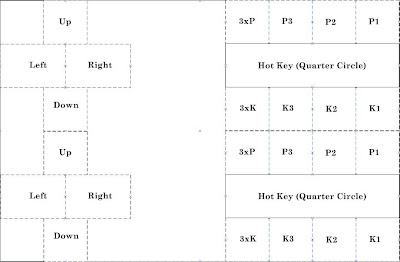
* Touch control (TC) overlay will get displayed when you touch any part
of screen (and will disappear if you press any keypad).
* There are 2 TC clients or listeners on the screen. (upper half and lower half).
They're active all the time but only touched regional TC will get displayed.
* Buttons are from right to left.
- P123 P3 P2 P1
- K123 K3 K2 K1
* There is Hot Key Trigger Button between Punch and Kick button.
======================================
Control
======================================
* coin up - slide finger from bottom to top
* P1 Start - slide finger from top to bottom on the left half of screen
* P2 Start - slide finger from top to bottom on the right half of screen
* Please remember Android doesn't support multi-touch.
So, make sure you lift your other side of finger before touching the screen!
* For shooting game, you can press p1 button for ~2 seconds and release.
This will trigger p1 auto fire until you press p1 button again.
* For fighting game, I've added "Smart Touch Sensing" option which will try to recognize the special move and put it in the memory.
Recognizable move list
-Quarter Circle (color-lit: white)
-Half Circle (color-lit: green)
-Full Circle (color-lit: Red)
For example, if you press d-pad down and fwd, it will make a move list (down-> down/fwd-> fwd) and put it in the memory.
And there will be a green color lit inside all button boxes.
And when you press any punch/kick button, it'll execute move sequences from the memory plus the button.
Memory box will stay unchanged until either a) you make other types of move or b) press any punch/kick button.
* For full circle, you need to make half circle backward and half circle forward. (or visa-verse doesn't matter). This is to allow your character (eg. Zangief) to stay on the ground.
* Hot key button is added between punch and kick buttons.
Direction of hot key is controlled by the right or left button.
Eg. To throw a fireball, tap forward and slide finger from hot key button to any of punch button.
From this position, tap hot key button and tap any of punch button for uppercut.
* To press both P an K buttons, you can slide your finger from P to K (or visa-verse) in the middle area.
CPS2 v1.5.0 update summary
======================================
-Touch control support! (landscape mode only)
-3buttons key (P1+P2+P3 and K1+K2+K3)
-P1 auto fire
======================================
HowTo Touch Control
======================================
Read the following section very carefully...
And practice & practice with 2nd player before giving up!
======================================
Layout
======================================

* Touch control (TC) overlay will get displayed when you touch any part
of screen (and will disappear if you press any keypad).
* There are 2 TC clients or listeners on the screen. (upper half and lower half).
They're active all the time but only touched regional TC will get displayed.
* Buttons are from right to left.
- P123 P3 P2 P1
- K123 K3 K2 K1
* There is Hot Key Trigger Button between Punch and Kick button.
======================================
Control
======================================
* coin up - slide finger from bottom to top
* P1 Start - slide finger from top to bottom on the left half of screen
* P2 Start - slide finger from top to bottom on the right half of screen
* Please remember Android doesn't support multi-touch.
So, make sure you lift your other side of finger before touching the screen!
* For shooting game, you can press p1 button for ~2 seconds and release.
This will trigger p1 auto fire until you press p1 button again.
* For fighting game, I've added "Smart Touch Sensing" option which will try to recognize the special move and put it in the memory.
Recognizable move list
-Quarter Circle (color-lit: white)
-Half Circle (color-lit: green)
-Full Circle (color-lit: Red)
For example, if you press d-pad down and fwd, it will make a move list (down-> down/fwd-> fwd) and put it in the memory.
And there will be a green color lit inside all button boxes.
And when you press any punch/kick button, it'll execute move sequences from the memory plus the button.
Memory box will stay unchanged until either a) you make other types of move or b) press any punch/kick button.
* For full circle, you need to make half circle backward and half circle forward. (or visa-verse doesn't matter). This is to allow your character (eg. Zangief) to stay on the ground.
* Hot key button is added between punch and kick buttons.
Direction of hot key is controlled by the right or left button.
Eg. To throw a fireball, tap forward and slide finger from hot key button to any of punch button.
From this position, tap hot key button and tap any of punch button for uppercut.
* To press both P an K buttons, you can slide your finger from P to K (or visa-verse) in the middle area.
Subscribe to:
Posts (Atom)